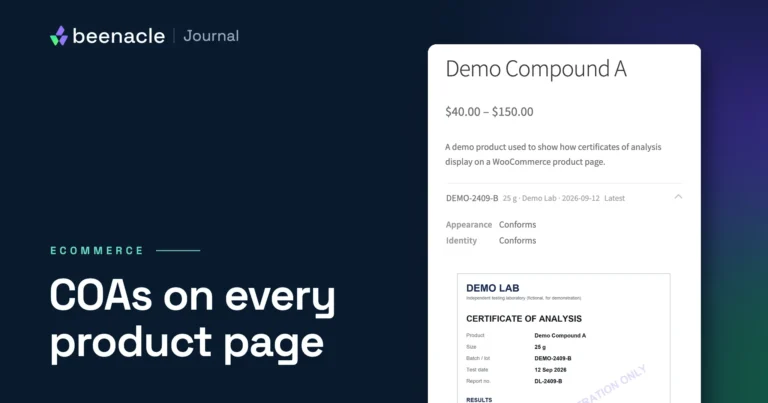
COA Vault is a WooCommerce plugin for showing certificates of analysis (COAs) on product pages. We built it at Beenacle for the stores we build and maintain, and we give it away: it is free and open source (GPL, source on GitHub). If you are still choosing between a linked PDF, a plugin and a custom build, start with our comparison of the three methods, which covers the other COA plugins too.
COA Vault is built around a certificate per lot and per size, with the lab’s own verification link one click away. Screenshots are from version 0.3.1 on a demo store running WordPress 7.0, WooCommerce 10.9.1 and PHP 8.4. It needs PHP 8.1+, WordPress 6.4+ and WooCommerce 8.0+. WooCommerce must be active: on WordPress 6.5 and later, WordPress will not let you activate COA Vault until WooCommerce is installed and active.
Install COA Vault and choose its settings
1. Install from the GitHub release
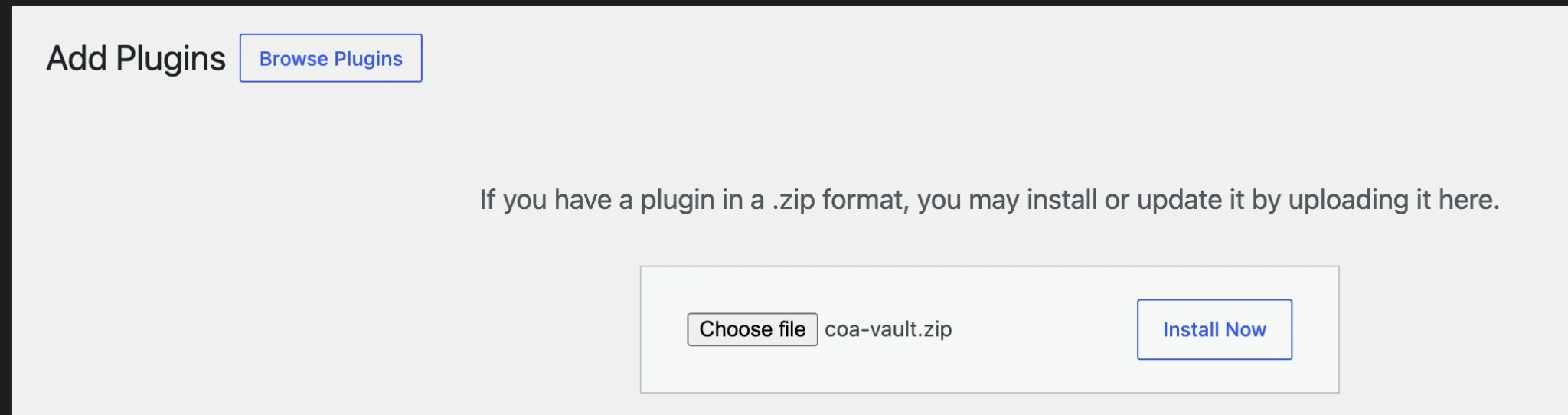
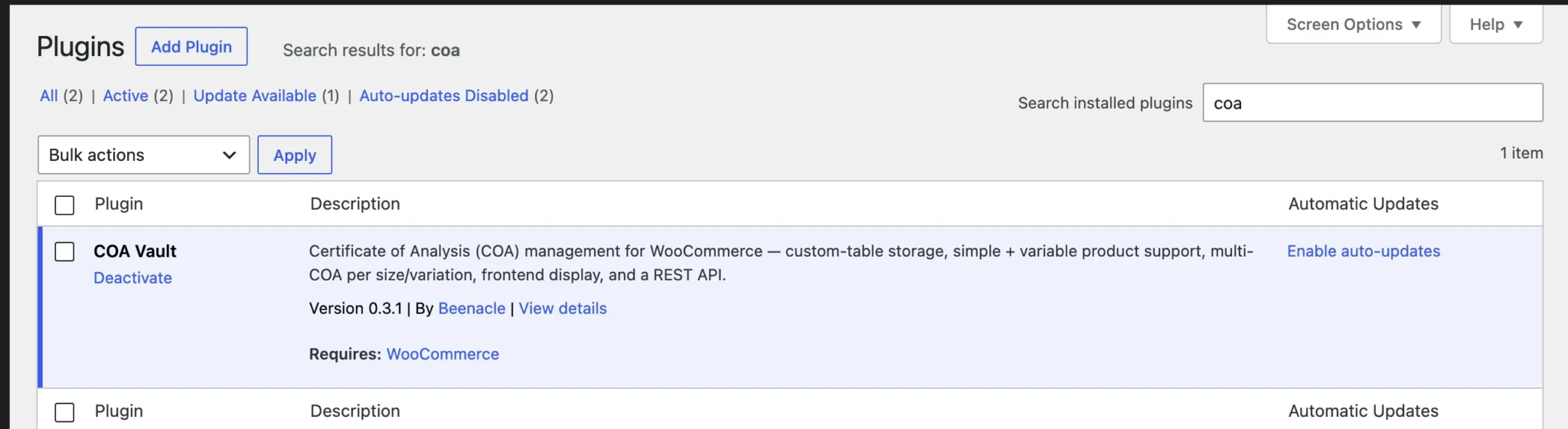
COA Vault is not on WordPress.org. Download coa-vault.zip from the latest release on GitHub, then go to Plugins → Add Plugin → Upload Plugin and activate. Older WordPress versions call the menu item Add New Plugin. It creates its own database tables, and later updates appear in Dashboard → Updates.
2. Set the settings that matter
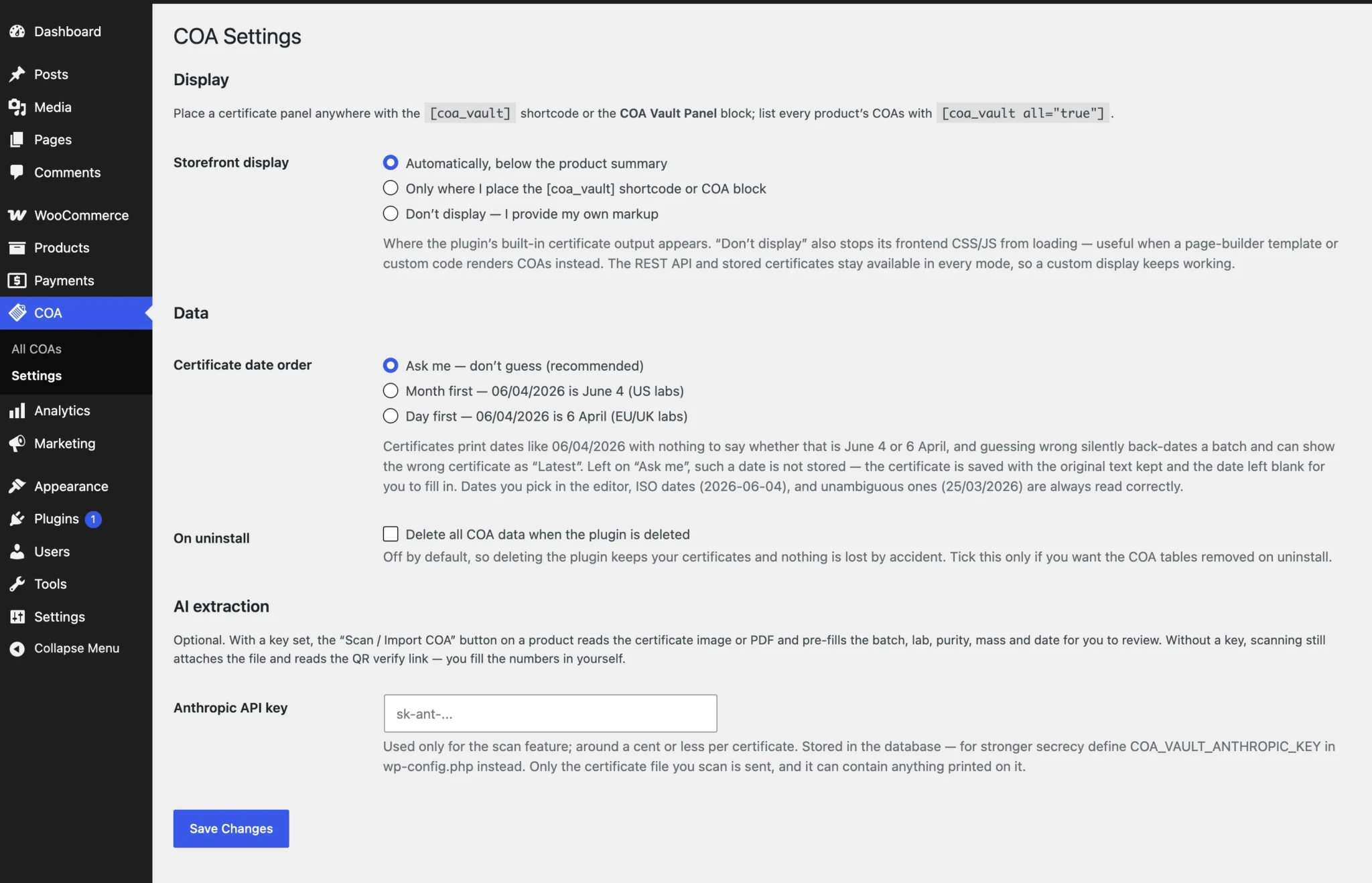
A COA menu appears, with All COAs and Settings (Settings is visible to administrators only). On COA → Settings:
- Storefront display. Automatic, only where you place it, or off.
- Certificate date order. The default refuses to guess. 06/04/2026 is June 4 to a US lab and 6 April to a UK one, so pick an order only if all your labs agree. AI-read dates are converted by the model, so check the date on every scan.
- On uninstall. Off by default, so deleting the plugin keeps your COA records.
- AI extraction. Optional; see step 4.
Add COAs to your products
3. Add a COA to a product
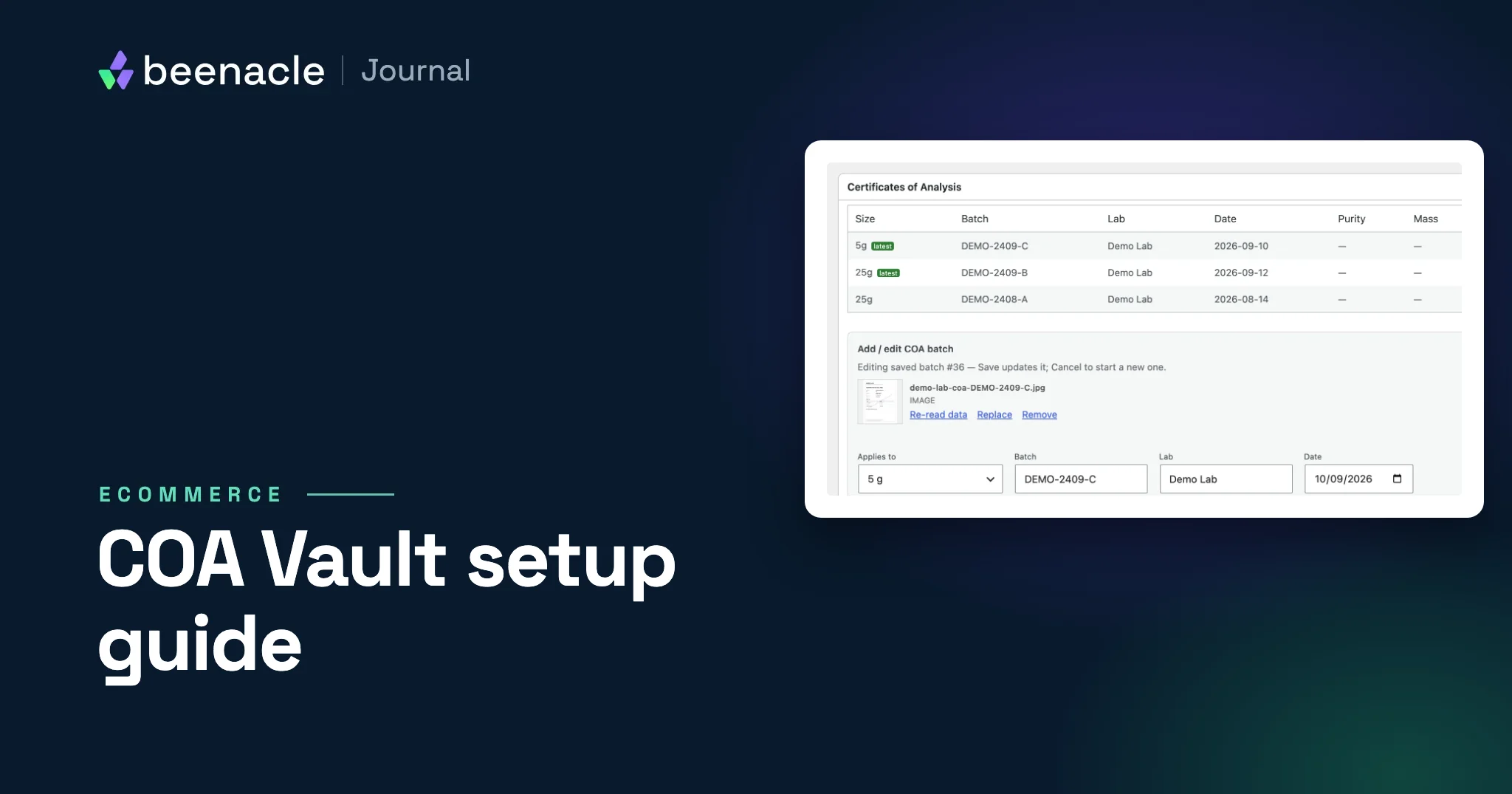
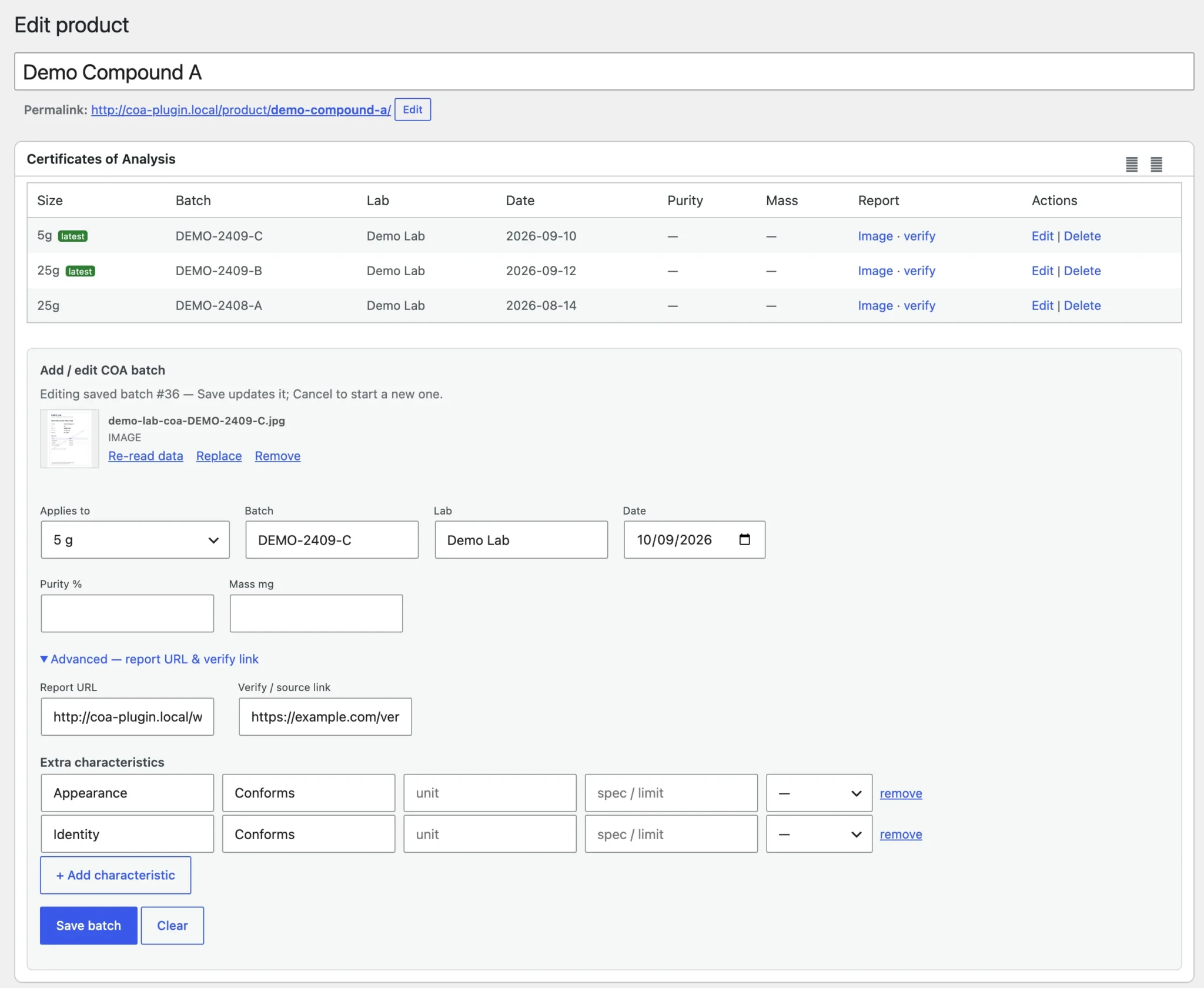
Open a product and find the Certificates of Analysis box. Drag a certificate (JPG, PNG, WEBP, GIF or PDF) onto the drop zone, or use Upload or Media Library.
Fill in the batch form: Applies to (the whole product or one variation), Batch, Lab, Date and the headline results. The report URL and verify link sit under Advanced, and optional extra characteristics rows each take a stated limit and a pass/fail mark copied from the certificate. Nothing is saved until you click Save batch.
For a freshly uploaded image, the browser reads the lab’s QR code and fills in the verify link and, for labs the plugin recognizes, the lab. PDFs and Media Library picks are not checked for a QR code, so add the link by hand or let the AI read the printed address. Every dropped or uploaded file lands in the Media Library, even if you never save.
4. Optional: let AI read the certificate
With an Anthropic API key set, the plugin reads each certificate and pre-fills batch, lab, date, the headline results, extra characteristics and, when the printed size matches one of the product’s variations, Applies to, all for you to review. It does not fill in the stated limits or the pass/fail marks; add those by hand from the certificate. Once a key is set it runs on every certificate you add, whether dropped or picked from the Media Library, and on the Re-read data and bulk Read data with AI actions, with no per-certificate off switch.
Know what leaves the site: the whole certificate file goes to Anthropic’s API (Claude Haiku 4.5 by default; a developer can change it with the COA_VAULT_CLAUDE_MODEL constant), including anything printed on it, such as your store’s name or your account number with the lab. COA Vault sends only that file and a fixed instruction, nothing else from your store. QR codes are decoded in your browser by a bundled library, but with AI on, the file that contains the QR code still goes to Anthropic. How Anthropic handles the file is covered by your own Anthropic account terms. Usage is billed to that account; by our estimate it is around a cent or less per one-page certificate. Put the key in wp-config.php as COA_VAULT_ANTHROPIC_KEY; the settings field stores it unencrypted in the database.
Show COAs per size, and find products without one
5. Choose where it shows
- Automatic. In a standard theme, between the short description and add-to-cart. Page-builder templates (Bricks, for example) may never fire the hook it uses; use the shortcode there.
- Shortcode.
[coa_vault]for the current product,[coa_vault product_id="123"]for another,[coa_vault all="true"]for a library page of every product’s COAs. - Block. A COA Panel block (
coa-vault/panel) renders the same markup when it is written into a block-theme template, but it has no editor script, so it does not appear in the block inserter. In the Site Editor, add a Shortcode block with[coa_vault]instead. - Off. Your theme renders COAs from the REST API. The shortcode switches off too, so any
[coa_vault]left in content prints as plain text.
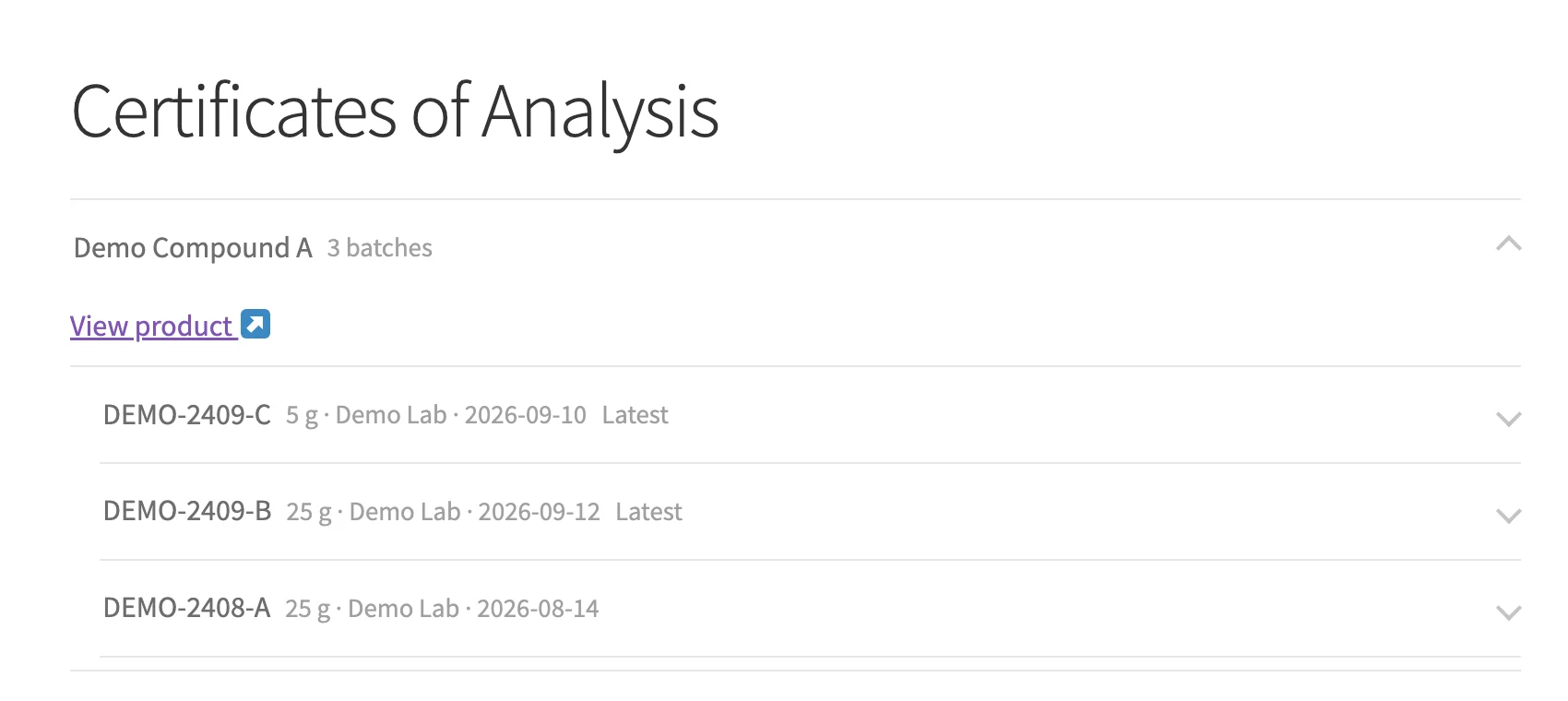
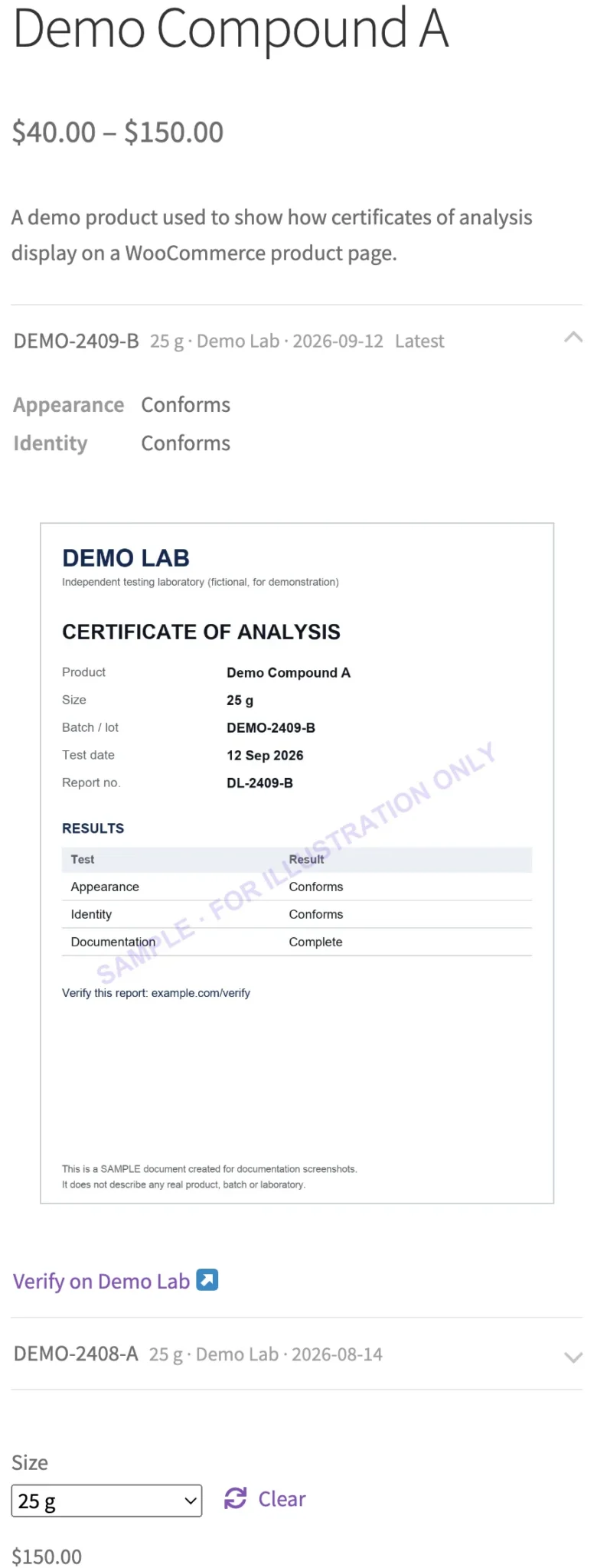
[coa_vault all="true"] shortcode builds a library page: one group per product, each batch with its size, lab and date, and the newest batch of each size marked Latest.6. What the shopper sees
Each batch is a row with its batch number, size, lab and test date; a COA that covers every size is tagged All sizes instead. The newest dated batch per size (and per set of whole-product COAs) is tagged Latest and opens by default; older ones stay as history. A batch saved without a date is never tagged Latest over a dated one, so fill in any date the plugin left blank.
Opening a row shows the results, copied from the certificate, the certificate itself and, if saved, a link to the lab’s verify page. A PDF shows as a first-page preview where your server can generate one, with a View full report (PDF) link. Where you enter the certificate’s own spec and verdict, a tick or cross repeats that verdict; the plugin does not judge results.
Before a size is picked, the list shows every batch for every size. Pick a size and the list swaps to the COAs for that variation. If it has none, it falls back to that size, then to whole-product COAs; whole-product COAs are not shown next to a variation’s own.
7. Coverage and the REST API
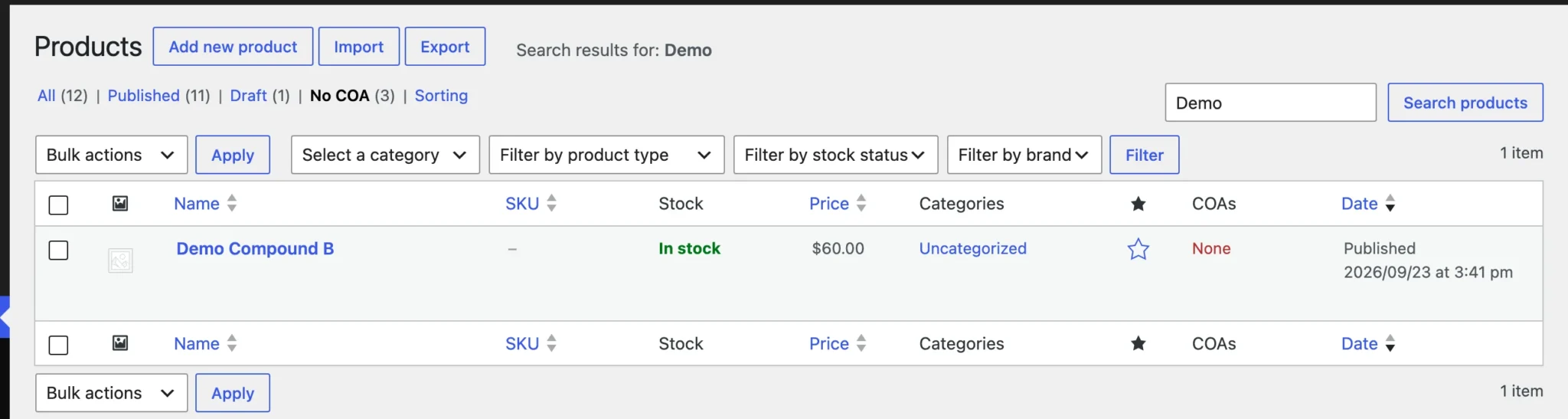
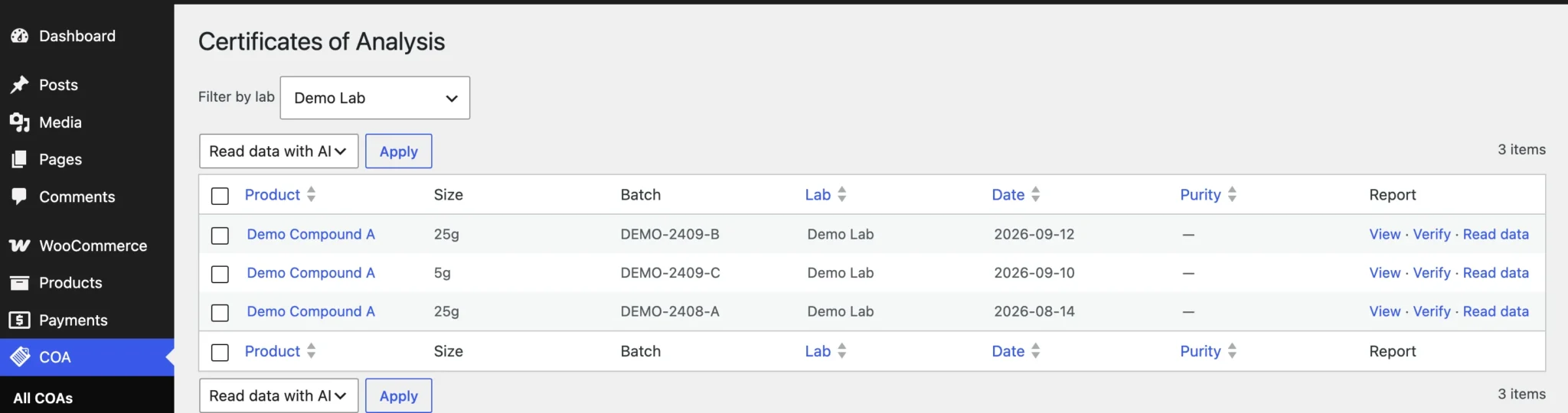
The Products list gains a COAs column and a No COA view of published products without a certificate. COA → All COAs lists every record, and its bulk Read data with AI action fills blank fields only. The plugin’s REST API (/wp-json/coa-vault/v1/) shows COA data for published products to anyone, by design; only users who can edit products can change it. That matters if you plan to gate COAs; see whether COAs should be public or gated.
Would rather not load new lots yourself? On stores we maintain, adding COAs as new lots arrive is part of our High-Risk Store Care plan, $750 a month, alongside staged updates, tested backups and a checkout test after every meaningful update.
Make the COA panel match your store
Out of the box, the COA panel picks up your theme’s fonts and colors and sits on the product page between the short description and the add-to-cart button. For many stores, that is enough. But certificates are a big part of why buyers trust a store, so it pays to make them look like they belong to yours.
What we can build for you:
- A COA tab or accordion on the product page, placed where your buyers look first.
- Batch, size and test-date labels, lab badges and verify buttons in your brand.
- A COA library page designed like the rest of your site.
- A COA library behind a customer login, or a batch lookup page for the codes printed on your labels.
Each job is a fixed price, quoted before any work starts. Send us your store’s link and tell us how you want it to look.
If a developer on your team would rather do it: the panel is plain HTML with coa-vault-* classes your theme can restyle, and the Off setting in step 5 hands display to your own template through the plugin’s REST API.
What COA Vault does not do
- No label QR codes or lookup page. It makes no QR codes for your packaging and adds no page where someone can look up a batch number. It links to the lab’s own verify page instead, where the certificate has one.
- No order-level batch records. It does not record which batch shipped in which order. Certificates attach to products and sizes, not to orders.
- Not a gate. Anyone can read COA data for published products through the REST API, by design, and certificate files in the Media Library have public URLs. Hiding the panel does not protect the files; a real gate needs protected file storage and a closed API.
- No CSV import. Bulk records go in through the REST API, for example from a migration script.
- Not on WordPress.org. You install it from the GitHub release, and updates come through Dashboard → Updates like any other plugin.
Need a hand with setup?
If your certificates already sit in product descriptions, custom fields or another plugin, we can move them into COA Vault and style the panel to match your site. That is quoted as a fixed price before any work starts. Tell us what you have now, and we reply within one business day.